





WordPress 7.1 releases August 19, 2026, on the final day of WordCamp US 2026. WordPress 7.1 new features add per-device responsive styling, hover and focus states for buttons, a Tabs block, an Audio Playlist block, a rebuilt image editor, and a set of Notes upgrades for team feedback.
Layout settings moved into the Styles tab. The block editor now runs in an iframe, which means older custom blocks may need an update.
Quick list of what is new in WordPress 7.1:
- Responsive styles per device, no custom CSS needed
- Hover, focus, and active states for buttons
- New Tabs block and Audio Playlist block
- Redesigned image crop and edit modal
- Notes with @mentions, rich text, and threaded comments
- Visual revisions with shareable links
- Client-side media processing: HEIC, AVIF, WebP, UltraHDR
- Persistent admin bar and a refreshed command palette
- Abilities API expansion for AI tooling
- Block API v3 required for the new iframed editor
Real-time collaboration was expected for WordPress 7.1, but it has been postponed.
WordPress 7.0 vs 7.1: What Actually Changed
| Feature | WordPress 7.0 | WordPress 7.1 |
| Per-device style editing | Preview only | Live editing per viewport |
| Button hover/focus states | Not available | Available (buttons only) |
| Tabs block | Not available | Available |
| Audio Playlist block | Not available | Available |
| Image crop tool | Basic inline crop | Full modal: rotate, flip, zoom, aspect presets |
| Notes | Basic notes | Rich text, @mentions, text-level threading |
| Revisions | Flat list | Visual timeline, shareable links |
| Layout settings location | Settings tab | Styles tab |
| Background image + color together | Group block only | Group, Verse, Pullquote, Quote, Post Content, Accordion |
| Block editor rendering | Standard DOM | Enforced iframe (Block API v3 needed) |
| Real-time collaboration | Cut before release | Still not shipped |
| Media format support | Standard formats | Adds HEIC, AVIF, WebP, UltraHDR |
WordPress 7.1 Release Date And Schedule
WordPress 7.1 ships August 19, 2026. It’s the second major release of the year, after 7.0 landed in May 2026.
| Milestone | Date |
| Beta 1 | July 15, 2026 |
| Beta 2 | July 17, 2026 |
| Beta 3 | July 22, 2026 |
| Beta 4 | July 29, 2026 |
| RC 1 | August 5, 2026 |
| RC 2 | August 12, 2026 |
| Final release | August 19, 2026 |
Should you update on day one?
Depends on your website.
Give plugin authors a week or two to ship compatibility updates, then test on staging before touching production. Back up first, and actually test that the backup restores. That’s the part people skip.
One thing worth separating out! WordPress 7.0.2 shipped in July as a security release, fixing a SQL injection issue and a REST API vulnerability. That’s a different release with a different urgency.
If you haven’t patched 7.0.2 yet, do that now regardless of your WordPress 7.1 timeline.
WordPress 7.1 New Features: Responsive Styles Per Device (Desktop, Tablet, Mobile)
How do responsive styles work in WordPress 7.1?
In WordPress 7.0, the device switcher only changed your preview. You couldn’t set different styles for mobile versus desktop without writing CSS yourself.WordPress 7.1 new features flip that. Switch to tablet or mobile view in the editor, and any style change you make now applies only to that viewport.
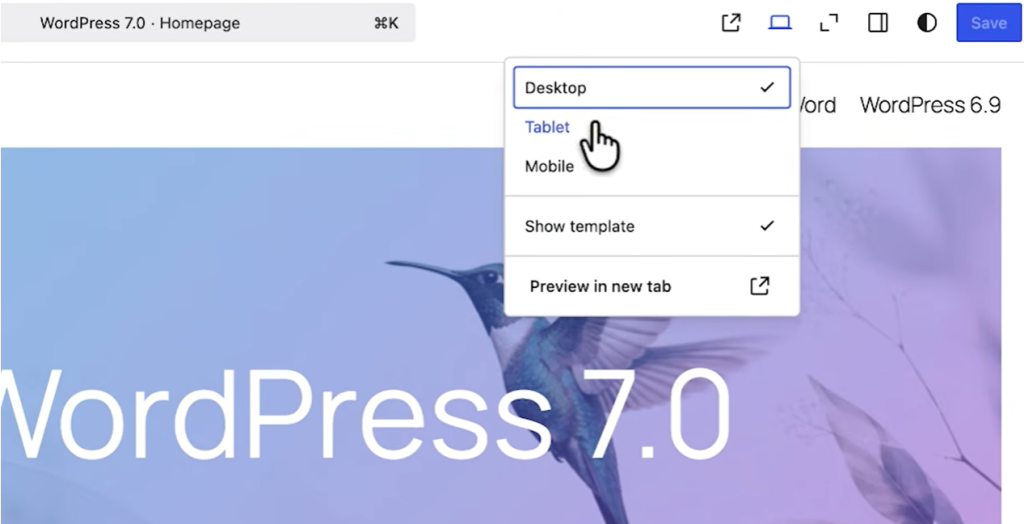
A label appears showing you’re editing a responsive style, so you know which device you’re targeting.
| Element | WordPress 7.0 | WordPress 7.1 |
| Device switcher | Preview only | Live per-device editing |
| Text alignment by device | Requires custom CSS | Built into block settings |
| Colors by device | Not supported | Supported |
| Custom breakpoints | theme.json only | theme.json only |
A practical example: center-aligned text on desktop, right-aligned on tablet, back to center on mobile.
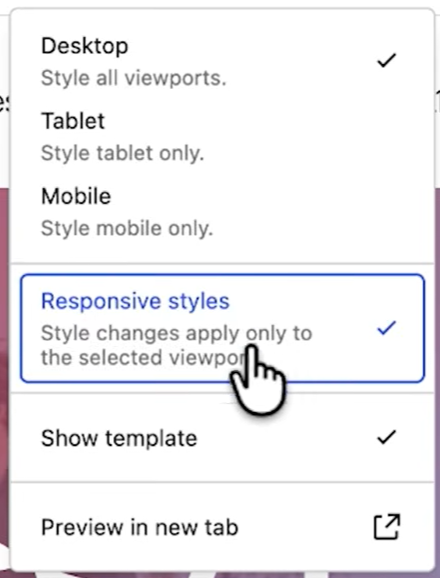
All 3 states, no CSS file touched.
Global responsive styling
The same control exists at the site level. Open Styles in the Site Editor, scroll to Blocks, pick one (Image, for example), and you’ll find tablet and mobile tabs alongside the desktop settings.
Text color, background color, spacing: all of it can differ by device.
Can you set custom breakpoints?
No, not through the UI in 7.1.
Theme authors can define custom breakpoints in theme.json, but there’s no settings panel for it yet. A UI for this is expected in WordPress 7.2, though nothing is confirmed until it ships.
WordPress 7.1 New Features: Pseudo-state Styling (hover, focus, active)
Which blocks support pseudo-states?
Buttons only, in 7.1. Worth being precise here, since some coverage implies broader support.
The five states available are default, hover, focus, focus visible, and active. Expansion to other blocks is expected in 7.2.
How to style button hover effects
- Select a button block in the editor.
- Click the 3-dot menu on the block toolbar.
- Choose a state: hover, focus, focus visible, or active.
- Set the background color, text color, or gradient for that state.
- Preview by hovering over the button in the editor.

To apply the same hover style everywhere, go to Styles, then Blocks, then Button, and set it globally instead of per-instance.
New blocks are in Among WordPress 7.1 New Features
Tabs block
Search “tabs” in the block inserter and you’ll find it. Give each tab a name, add or remove tabs as needed, then click into a tab to add content.
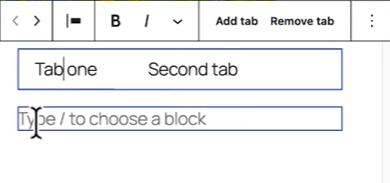
Any block goes inside a tab panel: paragraphs, images, other blocks nested inside.
The block has 3 layers you can style separately:
- the tab list (the clickable labels),
- the tab panels (the content area), and
- the outer Tabs block (overall layout).
Select each one individually from the list view to style it on its own.

Use cases of new blocks are:
- FAQ pages,
- product spec sheets,
- pricing comparisons,
And anything where you’d otherwise stack sections vertically and make visitors scroll past content they don’t need.
Audio Playlist block
Same approach: search “playlist” in the inserter. Upload tracks from your media library, and the block builds a playlist interface around them.

For each track, you can set the artist name, album title, and a track image.
Styling options include waveform color, play button color, and background color, plus a few shape variations for the waveform display. It starts from a plain default and can be styled up from there.
Do you still need a tabs or audio plugin?
Depends on what you’re doing with it.
| WordPress 7.1 native blocks | Third-party plugins | |
| Basic tabbed content | Covers it | Overkill |
| Basic audio playlist | Covers it | Overkill |
| Accordion-style tabs | Not built in | Still needed |
| Podcast RSS feed integration | Not built in | Still needed |
| Advanced playlist analytics | Not built in | Still needed |
| Nested or conditional tabs | Not built in | Still needed |
For a straightforward FAQ section or a simple track list, the native blocks do the job and you can remove a plugin. For anything with RSS feeds, play tracking, or conditional logic, you’re still reaching for a dedicated plugin.
WordPress 7.1 New Features: Block Editor Improvements
Layout settings moved to the Styles tab
If you’re looking for width and wide-width controls and can’t find them, they moved. In 7.0 they lived under Settings. In 7.1 they’re under Styles, and you may need to click “layout options” to turn on the width and wide-width fields, since they’re not shown by default anymore.
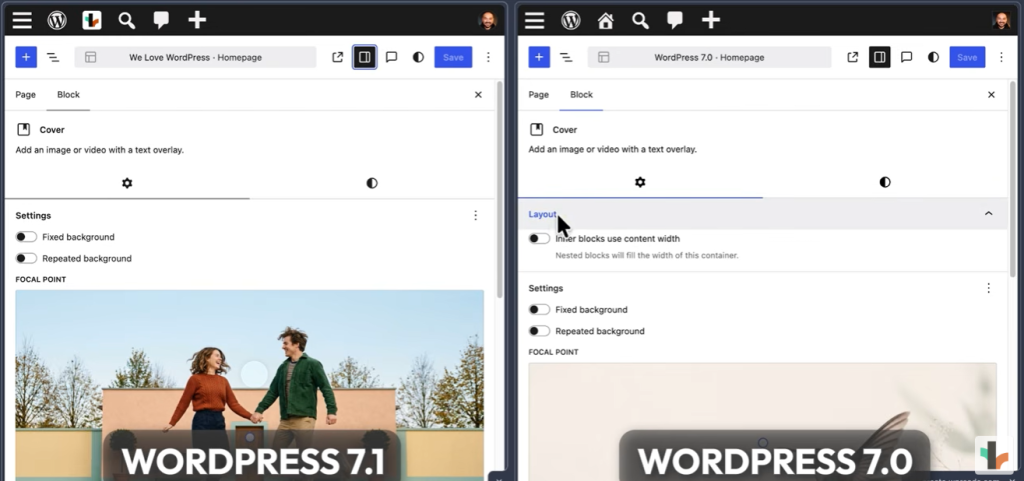
Image courtesy: WPRoads
Reorganized color and typography controls
The Styles tab no longer groups colors under labels like text, heading, and overlay the way 7.0 did. Typography settings now come first.
Text color has to be enabled separately through a menu before it shows up.
Overlay color and overlay opacity are where they were. Heading colors moved under Elements.
None of this changes what you can do. It changes where you go to do it, and it will trip up anyone used to the old layout for the first week or two.
“Apply globally” now shows what you’re applying
In 7.0, clicking “apply globally” pushed every style change to every block of that type at once, no review step.
In 7.1, clicking it opens a checklist of what changed, and you can uncheck anything you don’t want applied everywhere.

Uncheck background color, for instance, and every other style still applies globally while background color stays as a local override.
Background color or gradient with a background image
Previously, adding a background image silently overrode any background color or gradient you’d set.
In 7.1 they combine, so a semi-transparent color or gradient sits on top of the image instead of replacing it. This isn’t limited to the Group block anymore either.
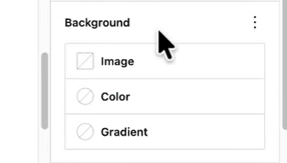
It now works on Verse, Pullquote, Quote, Post Content, and Accordion blocks too.
HTML block with editable nested content
The HTML block now supports editable nested blocks rather than treating everything as raw markup.
Useful if you’re pasting in AI-generated HTML and want to edit pieces of it as blocks afterward instead of hand-editing the source.
“Mark as decorative” toggle for images
A new toggle on the Image block lets you flag an image as purely decorative, which hides it from screen readers.
Small change, but it’s a real accessibility fix for images that carry no informational value (a divider graphic, for example) and shouldn’t be read aloud.
Smarter shortcode handling
Paste a shortcode that matches a known embed source, and 7.1 converts it into a proper Embed block instead of leaving raw shortcode text sitting in the editor. The Shortcode block also gets its own block-specific transforms now.
WordPress 7.1 New features: Media and Upload Improvements
Client-side media processing
Image and media processing now happens in the browser before upload, rather than after the file lands on the server.
Format support expands to HEIC (the default format on iPhone photos), AVIF, WebP, and UltraHDR. GIFs can convert to video on upload, which cuts file size significantly for anything animated.
Uploads also get a progress indicator and automatic retries. If your connection drops mid-upload, 7.1 retries instead of failing silently and leaving you to figure out what happened.
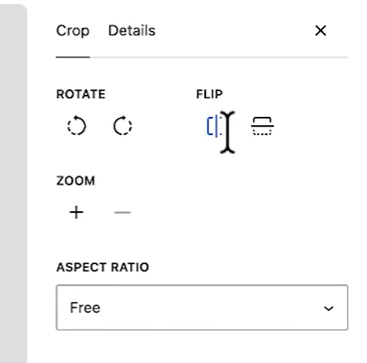
The new image editor modal
Click the crop icon on an image in the editor and you get a full modal now instead of the older, more limited inline crop tool.
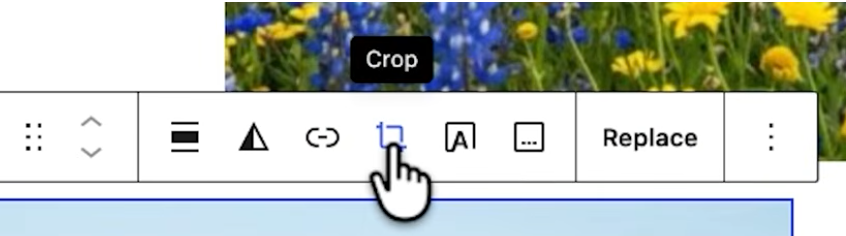
Inside it: free rotation by dragging, 90-degree rotation, flip, zoom, and aspect ratio presets (1:1 for square, among others).
The same screen also handles title, alt text, and caption editing, so you’re not jumping between a crop tool and a separate details panel to finish one image.
Attached images and smarter galleries
Every post now has an Attached Images panel, reachable from the block inserter under Media.
It shows everything already uploaded to that specific post, and you can attach or detach images from there without leaving the editor.
The Gallery block can pull from this directly. Turn on “use images attached to this post” in the block settings, and the gallery populates from whatever’s attached, no manual re-uploading or re-selecting.
Infinite scrolling in the Media Library
The Media Library grid loads more items automatically as you scroll, replacing the “Load more” button. It’s on by default. If you’d rather click through pages manually, turn it off in your user profile settings.
WordPress 7.1 New Features: Collaboration and Workflow Upgrades
Notes with @mentions and rich text
Select any block or piece of text, click “add note,” and you can now write in rich text: bold, italic, code, links, and emoji, each with a keyboard shortcut.
Type “@” to pull up a list of teammates and tag one directly. The person mentioned gets an email notification.
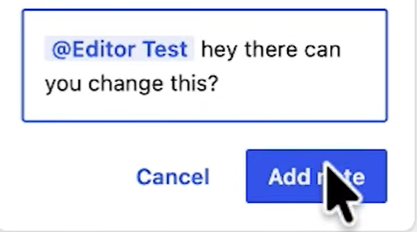
Notes can now attach to a specific text selection rather than an entire block, so a comment on one sentence doesn’t get lumped in with feedback on the whole paragraph.
Multiple separate note threads can exist on the same block, so 2 people can raise 2 different issues without one burying the other.
Long notes collapse by default with a “show more” toggle, which keeps the sidebar from turning into a wall of text.
Visual revisions with shareable links
The revisions screen now shows a step-by-step visual timeline instead of a flat list, with autosaves clearly labeled apart from manual saves. Click a specific revision, copy the URL.

And send it to a teammate. It opens directly to that exact revision when they click it, no digging through the history themselves.
Query loop: exclude the current post
If you’re building a “related posts” section with the Query Loop block, there’s now a direct way to exclude the post the visitor is currently reading.

Go to the block’s filter settings, select Custom, and switch on the option to exclude the current post.
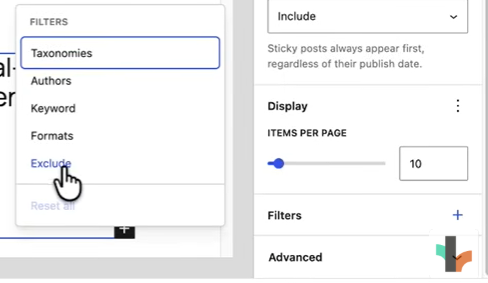
Before 7.1, this took a workaround. Now it’s 1 toggle.
WordPress 7.1 New Features: Admin and UI Polish
The admin bar (Omnibar) now stays visible at all times inside the editor, instead of hiding when you scroll.
The command palette got a visual refresh and now shows recent navigations and suggestions alongside your search results. So, it’s less of a cold search box and more of a shortcut list that adapts to what you actually use.
Your admin color scheme preference now carries over into the Site Editor, which wasn’t the case before. If you’d set a dark or light scheme in your profile, the Site Editor used to ignore it.
A new Identity section groups site title, tagline, logo, and icon in one place instead of scattering them across settings screens.

The old square dashboard avatar in WordPress 7.0 is now rounded, and the generic dashboard icon in the top-left corner is replaced by your site’s actual favicon.
Smaller Items Worth Knowing About:
- Post excerpts now show in the Posts list view without opening each post individually.
- A new “On This Day” dashboard widget surfaces old posts and comments from the same date in previous years.
- Comment replies get an editable “in reply to” dropdown so you can reassign a misplaced reply.
- DataViews/DataForms (the underlying system behind list views like Posts and Pages) got several refinements for filtering and sorting.
WordPress 7.1 New Features For developers
Abilities API expansion
The Abilities API, which lets external tools query and interact with WordPress in a structured way, is more mature in 7.1. It adds standardized querying, filtering, and validation.
Practically, this is the layer that gives AI agents and automation tools a defined, reliable way to read and act on WordPress data instead of guessing at it.
If you’re building anything that connects AI tooling to WordPress, this is the part of 7.1 to read the dev notes on directly.
Icons API
Plugin and theme developers can now register custom icons directly into WordPress’s icon library through the new Icons API.

No need to ship icon fonts or SVG sprites separately and hoping they don’t clash with core.
Enforced iframed editor
The block editor now runs inside an iframe by default, and it’s enforced rather than optional. If you maintain custom blocks, this is the one change in 7.1 that can actually break something in production.
Blocks built against Block API v2 assumptions about direct DOM access to the editor frame may not behave correctly.
The practical fix is migrating to Block API v3, which is built with the iframed editor in mind.
Other Developer-Facing Changes
Block bindings now extend to list items, not just a limited set of blocks.
Several theme-level APIs move from experimental to stable. The Connectors system (used for third-party service authentication) gets improvements to how auth tokens are handled.
For the full technical rundown, the WordPress.org release post and the Make Core dev notes are the primary sources.
Final verdict: Is WordPress 7.1 Worth Updating For?
| Feature | What it does | Who benefits most |
| Responsive styling | Removes custom CSS for per-device design | Designers, site owners without a developer |
| Pseudo states | Native hover/focus/active on buttons | Designers |
| Tabs and Playlist blocks | Native alternatives to common plugins | Site owners running lightweight sites |
| Notes and revisions | Faster async feedback loops | Teams and agencies |
| Media improvements | Better format support, fewer failed uploads | Anyone uploading media regularly |
| Abilities API | Structured foundation for AI tooling | Developers building AI integrations |
| Block API v3 requirement | Breaking change for older custom blocks | Developers, agencies |