





Managing points is only part of running a successful rewards program. You also need a clear way to control when those points expire, which points are affected, and how customers are informed about expiration.
The myCred Expiration add-on has been completely revamped to make point expiration more flexible and easier to manage.
The restructure moves expiration rules to the Point Type level, gives admins control over which references are affected, and separates expiration logic from email notification management.
Here’s what has changed.
What’s New in the myCred Expiration Add-on?
The revamped Expiration add-on gives admins more control over three important areas:
- Configure expiration rules at the Point Type level.
- Apply expiration to all references or selected references.
- Manage expiration emails through the dedicated myCred Email Notifications add-on.
The result is a cleaner separation between point expiration rules and customer notifications.
How to Set Up the Expiration Add-on
The Expiration add-on is available through myCred Addons Pro.
To enable it:
- Install myCred Addons Pro.
- Go to Admin Dashboard > myCred > Add-ons.
- Enable the Expiration add-on.
Once enabled, you can configure the general expiration settings and define rules for individual point types.
How to Configure Expiration Rules at the Point Type Level
One of the main changes in the revamped add-on is where expiration rules are configured.
Go to:
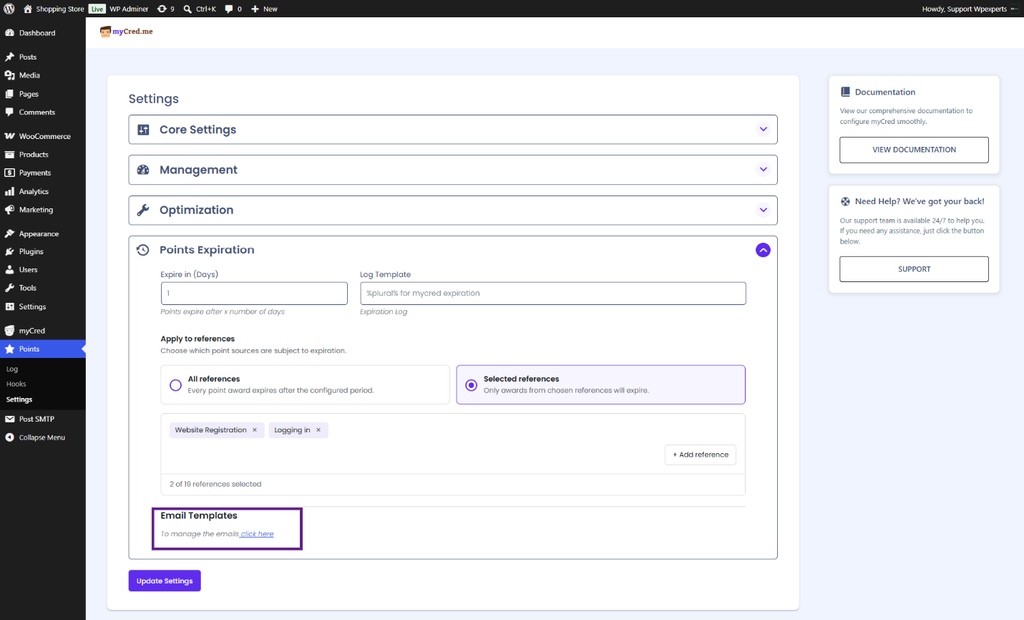
Admin Dashboard > Point Type > Settings
The Points Expiration section lets you define when awarded points should expire. You can enter the number of days after which points expire. For example, setting the value to 1 means the points expire one day after they are awarded.
This gives admins a more direct way to manage expiration according to their point type configuration.
Admins can also enter a log template for expiration-related entries.
Choose Which Points Should Expire
Not every point source necessarily needs the same expiration rule. The revamped system gives admins two options for deciding which point references are covered.
All References
Choose All References when points awarded through all available references should expire after the configured number of days.
Selected References
Choose Selected References when expiration should apply only to specific point sources.
Admins can click + Add Reference and select the references they want to include in the expiration rule.
When using selected references, those references must also be configured in the Backend Hook System.
This is one of the biggest improvements in the revamped Expiration add-on. Instead of treating every point source the same, admins can decide exactly where an expiration rule should apply.
How to Show Point Expiration Information to Customers
The revamp also improves visibility into point expiration.
Go to:
Admin Dashboard > myCred > General Settings > Points Expiration
The Points Expiration section provides the [mycred_front_expiry_left] shortcode, which can be used on the front end to display customers’ points together with their expiration dates.
Admins can also configure how expiration dates are displayed.
Customers can then see expiration information alongside their points.
The front-end display can also show how much time is left before the points expire.
How to Track Expiration in the Points Log
Expiration information is also visible in the points log.
The Expiry column shows the expiration date associated with the points. Once the points expire, the column displays “Expired.”
This gives admins and customers a clear record of the point’s expiration status.

Email Notifications Are Now Managed Through myCred Email Notifications
Previously, expiration email triggers were handled directly within the myCred Expiration add-on.
With the revamped structure, email notification management has moved to the dedicated myCred Email Notifications add-on.
This creates a clearer separation between the two functions:
- Expiration add-on: Controls when and which points expire.
- Email Notifications add-on: Controls when customers receive email notifications.
To configure expiration emails, go to:
Admin Dashboard > myCred > Email Notifications
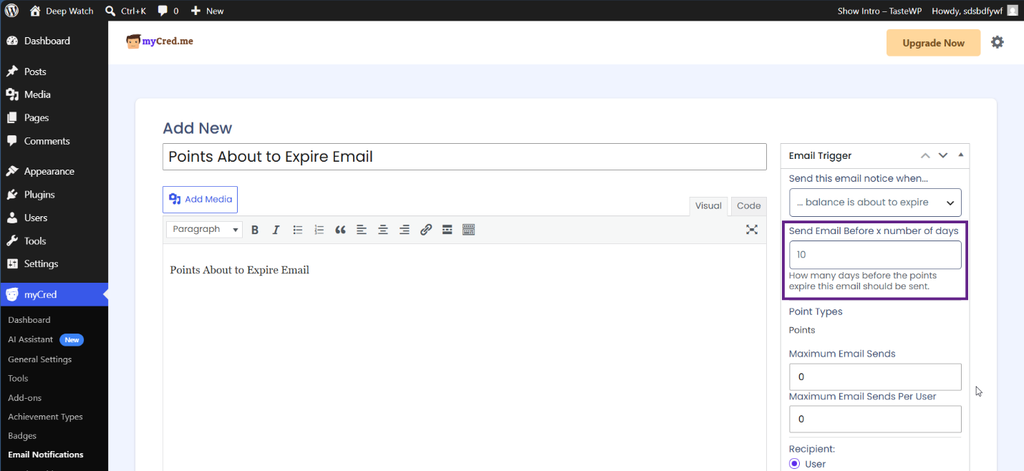
You can add or edit an email notification and choose the event that should trigger the email.
For point expiration, you can configure notifications for points that are about to expire or notifications sent after points have expired.
The Email Notifications add-on must be installed to configure these notifications.
Set When the Expiration Reminder Is Sent
For pre-expiration reminders, select the Balance is About to Expire trigger.
A new field will appear where you can specify how many days before expiration the notification should be sent. Once configured, click Update to save the notification.
Customers will then receive the configured email notification about their expiring points.
A Cleaner Way to Manage Point Expiration
The revamped myCred Expiration add-on is designed around a simple separation of responsibilities.
You configure point expiration rules where your point types are managed. You decide whether those rules apply to all references or selected references. And you manage customer communication separately through the Email Notifications add-on.
The goal of the Expiration add-on restructure is to give admins more control over point expiration while keeping notification management separate and easier to configure.